For K-12 purchasing cooperatives

Your districts already did the math. Stop making them
type it in again.

Member districts send forecasts in the format they already use: a spreadsheet, a Google Sheet, or an email attachment. Sage reads each file, matches its lines to your catalog, and combines the results into a forecast for vendors.

Millbrook ISDforecast_27.xlsx
Stonecreek ISDshared Google Sheet
Fox Hollow ISDemailed attachment
Sage, the Sage Forecast owl
Aggregated forecast
3,864 items
Districts submitted41 / 44
Lines matched18,402
Needs your review96
How it goes today

Forty districts send forty different layouts.
Someone in your office has to reconcile them.

The process works, but it takes someone six weeks.

01: Ask

You send out the template

Some districts use it. Others send last year's version or their own workbook, because that is what their kitchens fill out.

02: Wait

You chase the stragglers

To see who has submitted, you open a folder and count. Follow-up emails and second-round reminders are manual.

03: Reconcile

Someone merges it by hand

Codes and descriptions do not line up, and cases get mixed with eaches. You end up with one tab per district, a pivot table, and a lot of hoping.

Sage
District files work for the people who made them. They just do not look alike. I handle that part.
No new data entry

We take the file they already made.

Districts keep their current process. A nutrition director can send the same workbook, Sheet, or attachment without learning a new template or signing in to another account. Sage reads the columns it needs.

Their own workbook.xlsx · .csv

Any layout

Sage finds the item lines among extra tabs, merged headers, notes, and subtotals.

Google Sheetsshared link

A link is fine

Districts that work together in Sheets can share the link. We pull the current version when the forecast period opens.

Emailforward the attachment

Or forward it

If a district has emailed you a spreadsheet for eleven years, it can keep doing that. The file lands in the same queue.

The hard part

Matching messy lines to your catalog.

This work used to be done by hand, and it is most of what Sage does. Sage checks every incoming line against your catalog. Uncertain matches go to review.

What the district sentforecast_27.xlsx
1002346/#10 CN PIZZA WG 51%
qty 400 · unit "cs"
—chkn nuggets WG 100ct frzn
qty 1,200 · unit blank
10-0891PEACHES DICED CUP 4.4OZ
qty 85 · unit "case"
99110Tray, 5-compartment
qty 60 · unit "bx"
Sage
resolves
What lands in your forecastRegion 10 catalog
100234Pizza, CN 4x6 WG 51% — 6/#10
Exact ID400 cs → 400 cs
100418Chicken Nugget, WG Breaded 100 ct
Description · 94%1,200 ea → 12 cs (100/cs)
100891Peaches, Diced Cup 4.4 oz — 96/ct
ID normalized85 case → 85 cs
99110Tray, 5-compartment
Needs reviewnot a food item · no catalog match
01

Identifier first

Sage cleans up codes such as 10-0891, 100891, and codes with leading zeros before it checks the catalog.

02

Then the description

If the code is missing or does not match your catalog, Sage compares the line with your catalog descriptions and shows the match confidence.

03

Pack and unit reconciliation

Sage converts cases, eaches, boxes, and blank units with the pack size on the catalog item.

04

It remembers

Confirm a match once and Sage keeps it for that district. The same line can resolve on its own next period, which reduces the review pile over time.

Sage
I send low-confidence matches to the review queue with the original row, my best suggestion, and the reason for it. You can approve or correct the match, and I keep the answer.
Two jobs, one system

Built for co-ops and easy for districts.

For the co-op

Run the whole cycle from one place

You own the catalog, the calendar, and the numbers that go out to vendors.

  • Open and close forecast periods. Set the window, choose a catalog, and lock the period when it is done.
  • Keep one catalog of record. Products, pack sizes, and identifiers live in Sage instead of eleven workbook versions.
  • See who hasn't submitted at a glance, and follow up from the same screen.
  • See aggregated demand by item. District detail stays available when someone asks.
  • Export the bid file. Give vendors the file they need without a week of cleanup.
For member districts

Submit in five minutes

District staff keep their current workflow and avoid retyping the forecast.
  • Upload the file they already built. Drag in the file, share the link, or forward the email.
  • See Sage read it. The page shows clear progress while Sage processes the file.
  • Fix only the exceptions. Review the lines Sage flags instead of all 600.
  • Keep a submission receipt. It records what they submitted, when they sent it, and what Sage matched.
  • Districts do not pay. The co-op holds the account, and members submit their files.
The product

What it actually looks like

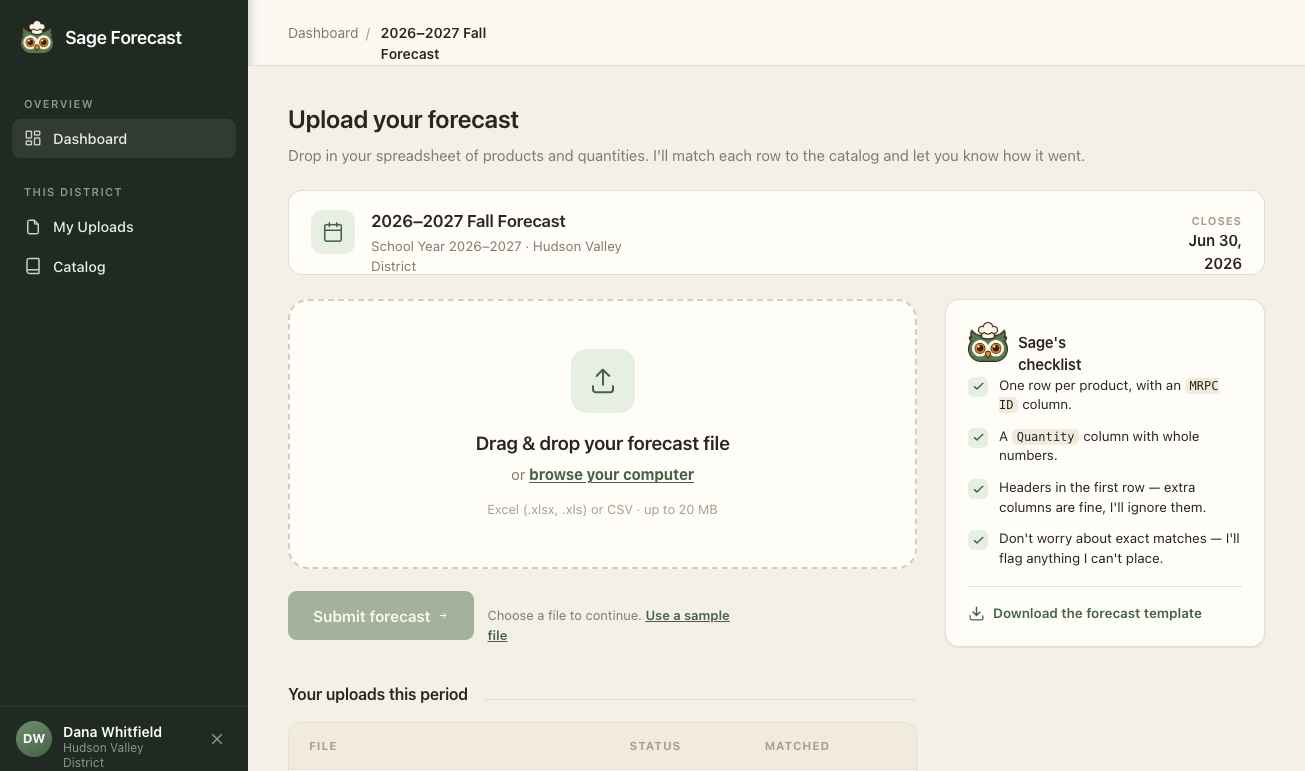
district · upload
A district dragging its forecast file into Sage
Drop the file in

One screen, one action. The district doesn't pick a template or map columns.
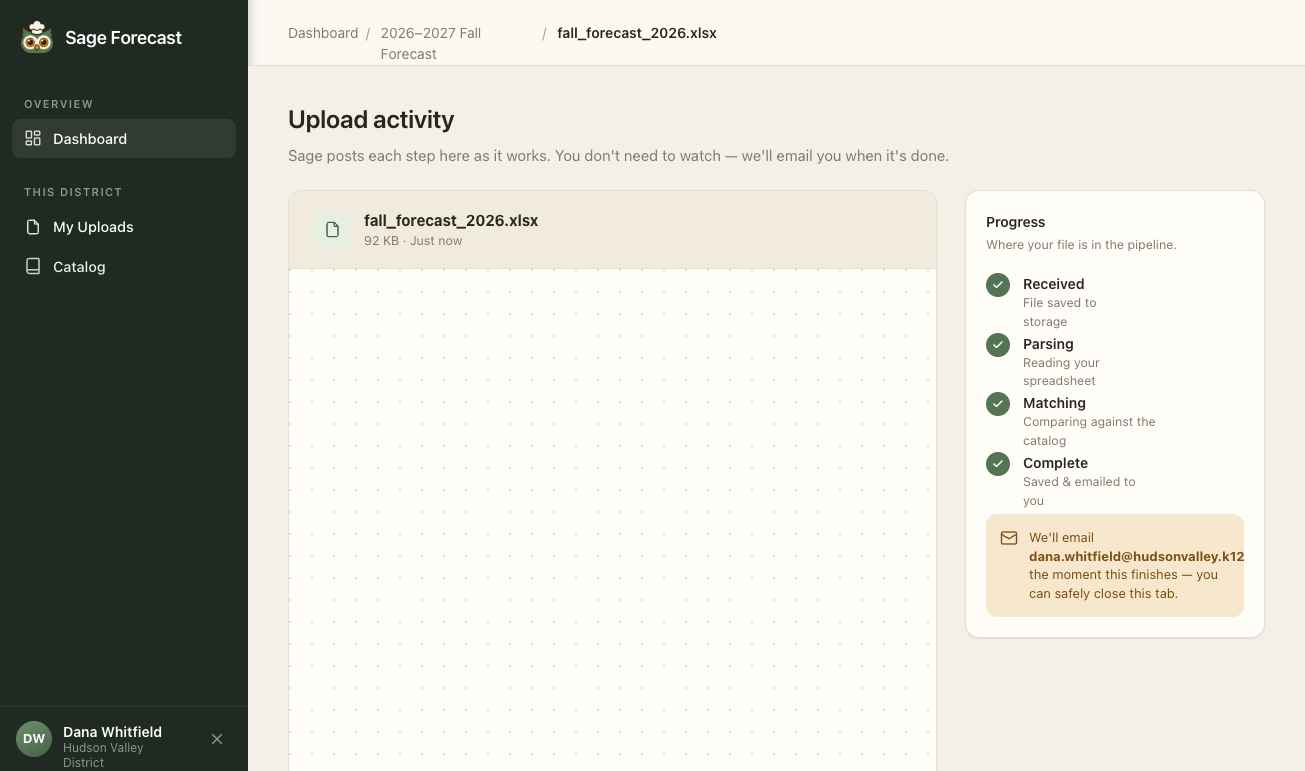
district · activity
Sage narrating the parsing and matching of an uploaded file
Sage shows its progress

See when Sage receives, parses, and matches the file. The summary lists anything that needs review.
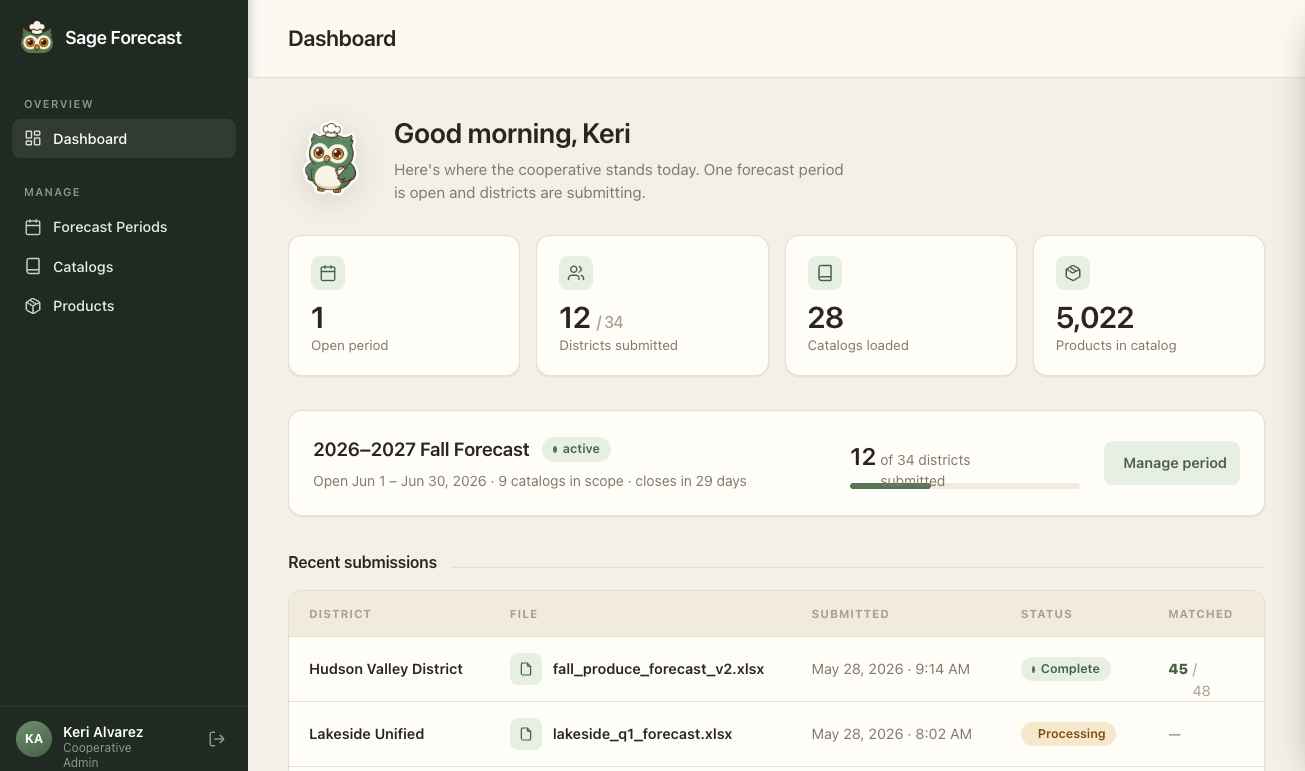
co-op · dashboard
The co-op dashboard showing period status and submissions
Follow the whole period

See submissions, exceptions, and the aggregated total as files arrive.

Getting started

Set up before your next forecast window.

We load the data and send it back for review. When the period opens, districts can start submitting files.

Step one

Send us your catalog

Send a spreadsheet, an export, or a PDF of the bid list. We load the products, identifiers, and pack sizes, then return the catalog for your review.

Step two

We add your districts

Send the member list, contact details, and last year's submissions if you have them. Previous submissions help Sage learn how each district formats its files.

Step three

Open your first period

Set the window and send one email. Files start arriving in whatever shape they arrive in, and you watch the forecast build.

Questions we get

Before you ask

What if a district's file is a mess?
Sage matches the rows it can and sends uncertain rows to review with the source row attached. The first period needs the most review. Saved aliases reduce that work in later periods.
Do our districts have to change anything?
They keep the workbook, the process, and the person who fills it out. They only change where the finished file goes.
Who owns the catalog and the forecast data?
You do. You can export your catalog, district submissions, and aggregated forecast at any time.
Can we see district-level detail, or just the total?
You can see both. The aggregate goes to vendors, and each line links to the district breakdown behind it.
How long does setup take?
Loading the catalog takes the most time, and the source format affects the schedule. A clean export is faster to load than a PDF bid list. We can review your source during the demo and explain what the load will require.
See Sage Forecast

See how Sage fits your process.

In a 30-minute demo, we will walk through the workflow and answer questions about your catalog and district files.